
Install Sealforge Anonymizer
Run the installer. It installs the desktop app, the local anonymization service, the detector and the tray agent (the hexagon icon next to the clock). Nothing is installed in the cloud.
Open Sealforge Anonymizer from the Start menu.
Check the services
The heart at the top right sums up the state of the services; hover it for details.
- Green: the detector and the anonymizer answer, everything is ready.
- Amber: the anonymizer answers but not the detector.
- Red: the anonymization service is stopped.


Find your way around
The toolbar holds the essentials: Text and File views, open, analyze, clear, fast or deep mode, confidence threshold, strict mode and sample texts. At the top right: history, settings, theme and service status.
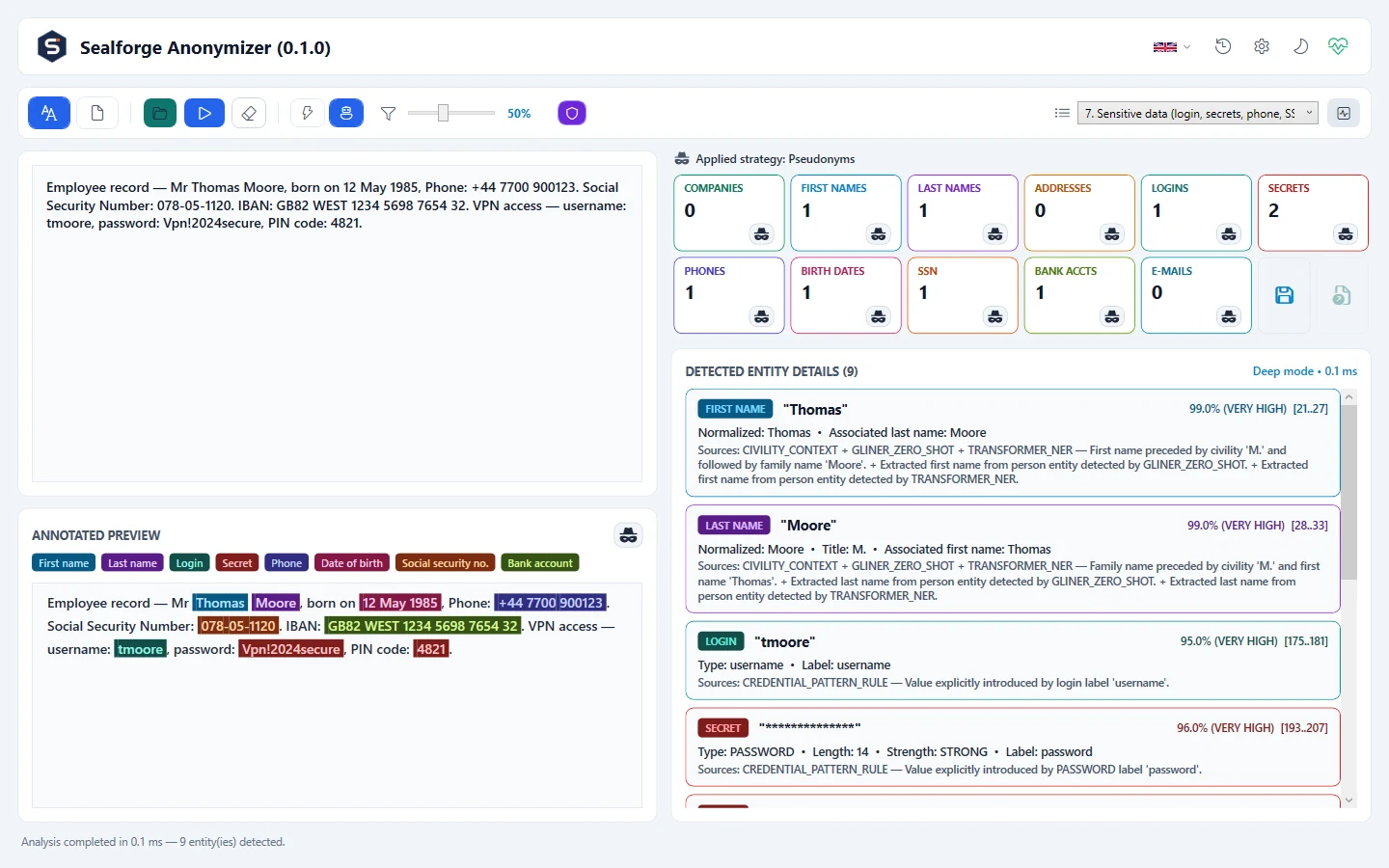
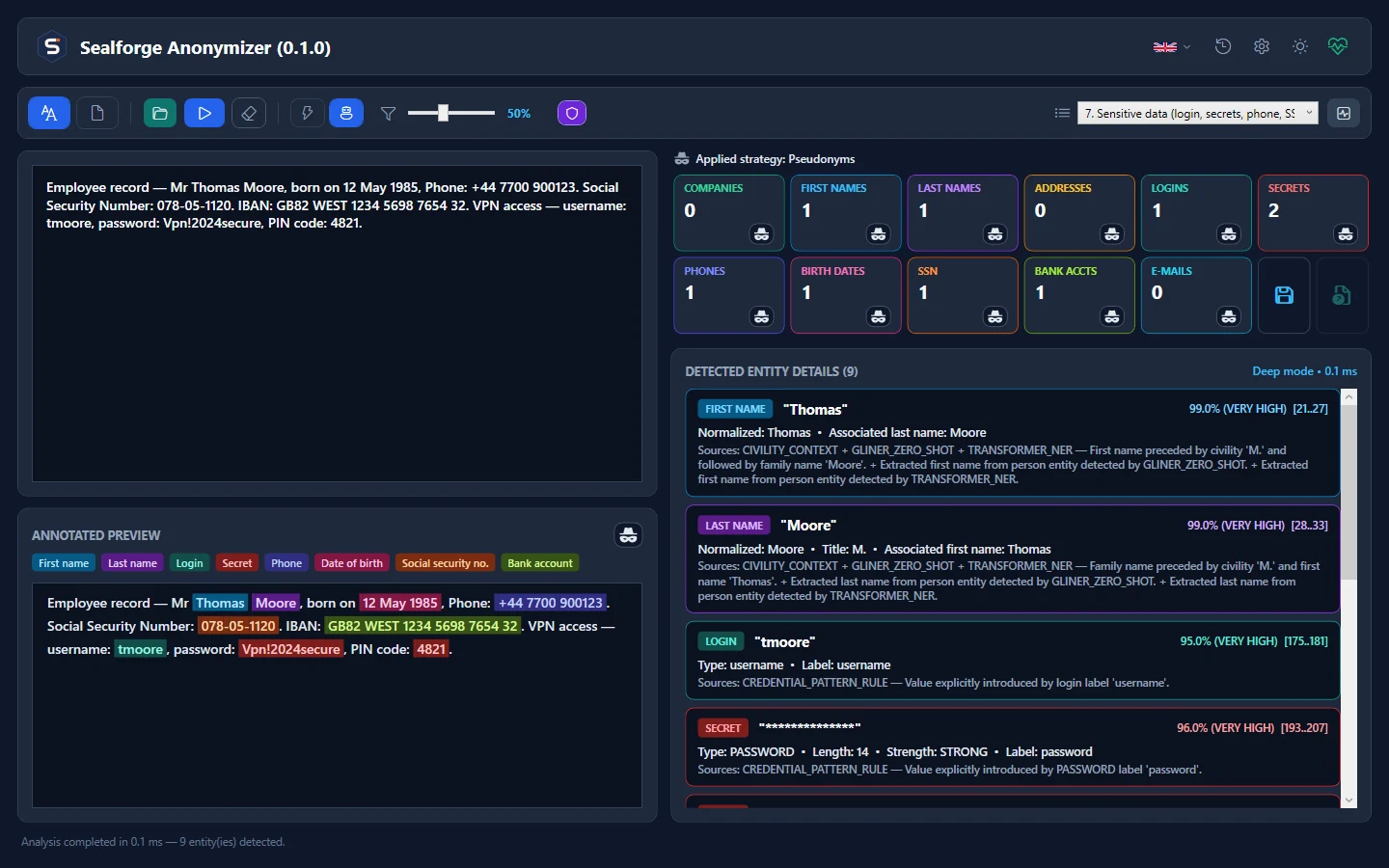
Choose the language and the theme
The flag switches the interface language. The sun (or the moon) toggles the light and dark themes; your choice is remembered. Without a choice, the app follows the Windows theme.
In Codex and Claude Code
The service status also governs your AI assistants: if pseudonymization is not possible, nothing leaves.
Codex
- Amber or red: the agent refuses Codex's requests ("sealforge_unavailable" error).
- No request is ever sent in clear for lack of an anonymizer.
Claude Code
- Same rule for Claude Code: the agent answers with an error instead of sending.
- In the Claude app, the module refuses the prompt while the agent does not answer.